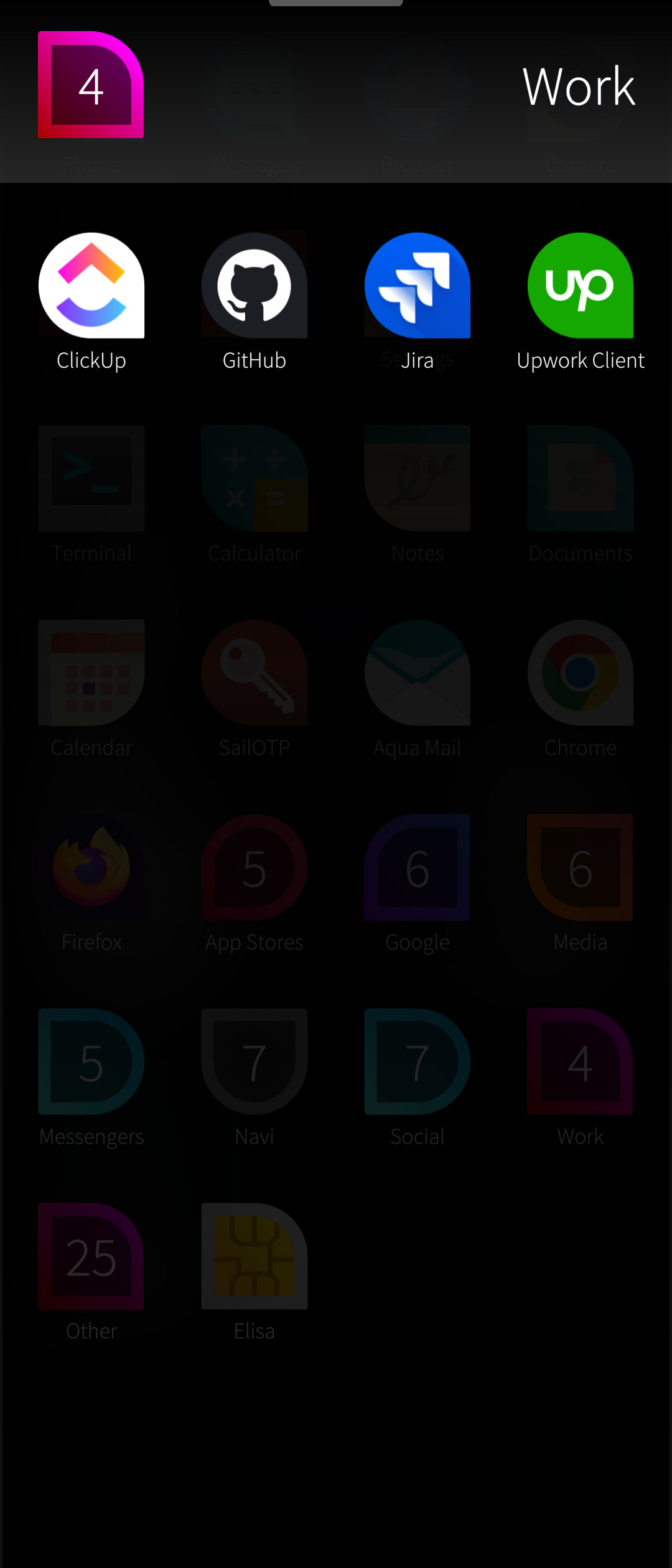
It’s a weird paint blobbish thing generated by overlaying app switcher cards with launcher icons. That’s still here with A12 binaries flash.
But maybe it’s not at all what @wetab73 has been referring to as «tint»? EDIT and wow, just looked at this screenshot on laptop: no tint, blob, banding or whatever! Whereas it’s clearly visible on phone screen.
Regardless, end of day 2, everything is still working great otherwise. It probably makes sense to have A12 as your SFOS base.
I don’t know if it’s the same but sometimes i do have some weird transparencies with previously opened apps, like i load a webpage on the browser, then close it and open fernschreiber, and i see the webpage all over sailfish elements, althought it’s hardly noticeable…
Wondering if it’s the same, especially since i’m on an xa2…
I see that it is still misunderstood. It is NOT the binaries what fixes the tint/banding and the echo issues. It is the UNDERLYING ANDROID 12 (or 13) OS, the one that you flash using EMMA, and then you flash SFOS on top of it. Binaries alone (i.e. what you flash to the oem_a partition) actually don’t seem to be doing anything regarding those specific issues.
So, once again, in order to get the display tint/banding and the echo issues fixed you need to flash Android OS using EMMA. You need either Android 12 (tested with 62.1.A.0.675, i.e. the last Android 12 update, I don’t know if earlier versions already had those fixes or not) or Android 13. But EMMA only offers Android 11 or Android 13, there is no Android 12 flashable image available via EMMA. So either you simply flash Android 13 via EMMA (tested by me and found fully working, actually I didn’t notice any differences vs. Android 12), or if you prefer Android 12 (as per Jolla recommendations) then the only way to get it is to flash Android 11 (version .109) via EMMA, then re-lock the bootloader in order to be able to get OTA updates inside Android, and then spend a few hours on installing one by one all consecutive (8 or so) Android 11 and then Android 12 OTA updates within Android itself, until you reach the 62.1.A.0.675 version. Then you need to unlock the bootloader again, and flash SFOS on top of it.
That’s the ONLY way to have the tint/banding and echo fixed, as those fixes are in the base Sony Android OS, not in the binaries.
P.S. You can’t illustrate the banding or tint issue on a screenshot. It is a technical issue of the display, it is not visible on a screenshot. You’d need to take a photo of the display.
But you DON’T have A12 as SFOS base. So far you only have A12 binaries, which don’t change anything regarding the display banding/tint and echo…
Sorry if this is already here somewhere, but i can backup my phones partitions, install android 13, install sfos and then restore my partitions?
thus no fresh sfos install?
Yes, you can backup rootfs and home in recovery and then restore the same way. It gives a perfect 100% restore. The partition to backup (containing both rootfs and home) on the 10 III is /dev/sda79
I am sure that it is also in this thread, but due to so much information here I am a little bit lost:
how do I backup and restore the partition correctly ( with a Linux box)?
select option 3) (shell), then enter your security code
mount your microSD card (at least 105 GB of free space is needed for an uncompressed backup):
mount /dev/mmcblk0p1 /mnt
do the backup:
dd if=/dev/sda79 of=/mnt/backup.img bs=1M
It may take 40+ minutes (or even more than one hour with a slower memory card). No progress is shown. If you would like to see progress, open another telnet connection and type:
watch -n5 'kill -USR1 $(pgrep ^dd$)'
This will show progress every 5 seconds.
When backup is complete, unmount memory card:
umount /mnt
and then exit recovery mode.
Finally, flash the normal hybris-boot.img to both boot slots:
Indeed, I never got “full Android flash required” from your previous posts, it always seemed like binaries only would do.
Well, couple of days ago I did end up discovering Android camera access is now broken with no clear way to revive it. Since binaries alone don’t change the game, I’m going to flash A12 binaries back to A11.
Are you sure about this? I.e. have you tried after reflashing the Sony software binaries recommended by Jolla?
Such effects are expected when using Sony software binaries which are incompatible to SailfishOS. But I cannot tell for sure, because I do not own an Xperia 10 III.
Up to now, the identified differences an Android 11 base versus an Android 12 / 13 base makes are “tint on screen”, “caller echo” and <IIRC there was a third thing>.
Hence please first reflash the Sony software binaries to the version Jolla recommend and check your camera issue (and report the outcome here), before flashing an Android 12 or 13 onto your Xperia 10 III.
One week later and everything runs great.
No issues at all (color - echo), battery is good and the camera lag was probably a random thing that day.
Latest Android 13 with latest Android 12 binaries works great!
I have no clue about anything related to app support since I didn’t get my license transferred yet, but I don’t think there will be an issue there.
I’m not sure if I follow. You’re saying that since binaries don’t change anything, you’re going to flash A12 binaries back to A11? Aren’t you still confusing binaries with the underlying OS?
Anyway, I’ve been using Android 12 binaries with underlying Android 12 OS (62.1.A.0.675) for weeks and both native and Android camera applications (e.g. Open Camera) have been working perfectly fine.
After weeks of tests, I dare to say that there are no apparent compatibility issues between Android 12 binaries SW_binaries_for_Xperia_Android_12_4.19_v2a_lena and SFOS, at least when running on top of Android 12 OS version 62.1.A.0.675.
May I suggest to use compression, and as nitpicks a block-size of 4 MBytes (i.e. the LVM extent size chosen by Jolla) and to avoid overwriting extant backups:
See if zstd is available (it compresses better and faster):
Type zstd and hit the <Return>-key , which should output “Incorrect parameters, Usage : …”
If zstd is there, backup with Zstandard compression (the whole statement comprises a single command-line): set -C; dd if=/dev/sda79 bs=4M | zstd -o /mnt/backup-sda79_$(date -I).img.zst
If not, use gzip (xz is way too slow; again, the whole statement comprises a single command-line): set -C; dd if=/dev/sda79 bs=4M | gzip >/mnt/backup-sda79_$(date -I).img.gz
Restore can be achieved by:
With zstd (the whole statement comprises a single command-line): zstd -dc /mnt/backup-sda79_<date>.img.zst | dd of=/dev/sda79 bs=4M
With gzip (the whole statement comprises a single command-line): gzip -dc /mnt/backup-sda79_<date>.img.gz | dd of=/dev/sda79 bs=4M
P.S.: As @thigg correctly pointed out, only the LVM meta-data and the content of the root volume are compressible, the whole home volume is not due to its encryption. Hence one might as well perform the backup as @wetab73 suggested, because there are only a few Gigabytes to be saved by compression, at most.
I took a backup via ssh to my pc (takes 40 minutes, will post about that soon) and flashed android 13 and restored sfos afterwards. Havent tested calling, but i got still color banding when using nightish and lowest settings in a dark room. That should have been fixed, right?
because I thought the sda* partitions might contain the relevant drivers that cause the issues, i took a md5sum of them before and after, it is a bit too much to say something useful:
I provide the old md5sums I had and the diff:
diff:
I took the backup via ssh to my laptop. Maybe this is interesting for some:
Backup and restore both take about 1 hour each, most of it without interaction.
Flashing android and reinstalling sfos took about 1h for me as well (most of the trouble was reviving a windows pc).
If you want to be really failsafe,mount your homepartition wiht cryptsetup after backup to make sure everything worked (either ungzip before cryptsetup or use avfs
connect device in fastboot mode (volume up and plugin usb cable on a powerd off phone)
flash recovery from the sailfishos distribution you use for flashing:
launch sshd from the menu and connect to it by following the instructions (no password needed). You can exit again, if it works. I assume the ip 10.42.66.66 for the commands below.
Comments:
using pigz (parallel gzip) is actually completly pointless on the home partition. This device is still encrypted (not what i was expecting) thus compression wont help anything.
Root partition should compress relativley good because this seems to be plain.
root partition backup and restore took about 1min, home partition backup 40min and restore 51min. The gzip command for the homepartition can be replaced by cat but shouldnt be a bottleneck with default parameters
I’m not confusing binaries and OS, but I never flashed full A12 OS here, just A12 binaries. So this last experiment was “A12 binaries on top of A11 OS”.
“Binaries don’t change anything” I should’ve worded better: A12 binaries on top of A11 OS caused a camera functionality regression. Everything else seemed to have stayed equal to my A11 binaries experience, hence no reason to try fix the camera regression in some other way.
I flashed A11 binaries back: Android camera functionality was immediately restored.
Thanks for SFOS partitions backup/restore guide: I will do a full A12 base flash after I’m back from US road trip, avoiding large risks during travel.
You introduced the necessity to reinstall SailfishOS only to restore the LVM volume layout by backing up on LVM volume level. IMO this is pretty senseless, either backup on block device level (/dev/sda79 for the Xperia 10 III) or on filesystem level for regular backups using tar (but the latter is unsuitable for the purpose here, i.e. backing up the complete SailfishOS installation).
If one wants to backup to another device (instead of on SD-card), the easiest way is to pipe into or from scp (in order not to resort to ancient tools as rcp or netcat).
I.e. for backing up dd if=/dev/sda79 bs=4M | scp <user>@<host>:<directory>/backup-sda79_$(date -I).img
and for restoring scp <user>@<host>:<directory>/backup-sda79_$(date -I).img | dd of=/dev/sda79 bs=4M
P.S. / Edit: Oops, scp does not seem to be able to read from or write to a pipe.
So one may try this (also untested):
Backup on your PC by ssh root@10.42.66.66 "/usr/bin/cat /dev/sda79" > backup-sda79_$(date -I).img
and restore from your PC by ssh root@10.42.66.66 -T "/usr/bin/cat > /dev/sda79" < backup-sda79_<hit-tab-to-autocomplete>.img