Volume Keys control Media, Alarms or Ringtone

By default, the volume rocker on Sailfish changes the ringtone volume, and only switches to media volume while something is already playing. So you can’t quickly set the volume before a video or audio starts. And alarms and timers have no volume setting at all.

For me, ringtone volume is set-and-forget: I pick a level once and use the privacy mode switch when I want silence. What I actually want most of the time is to set the media volume before a video or audio starts.

So here’s a Patchmanager patch that lets you choose what the volume keys control, and adds an alarm volume setting.
What it is

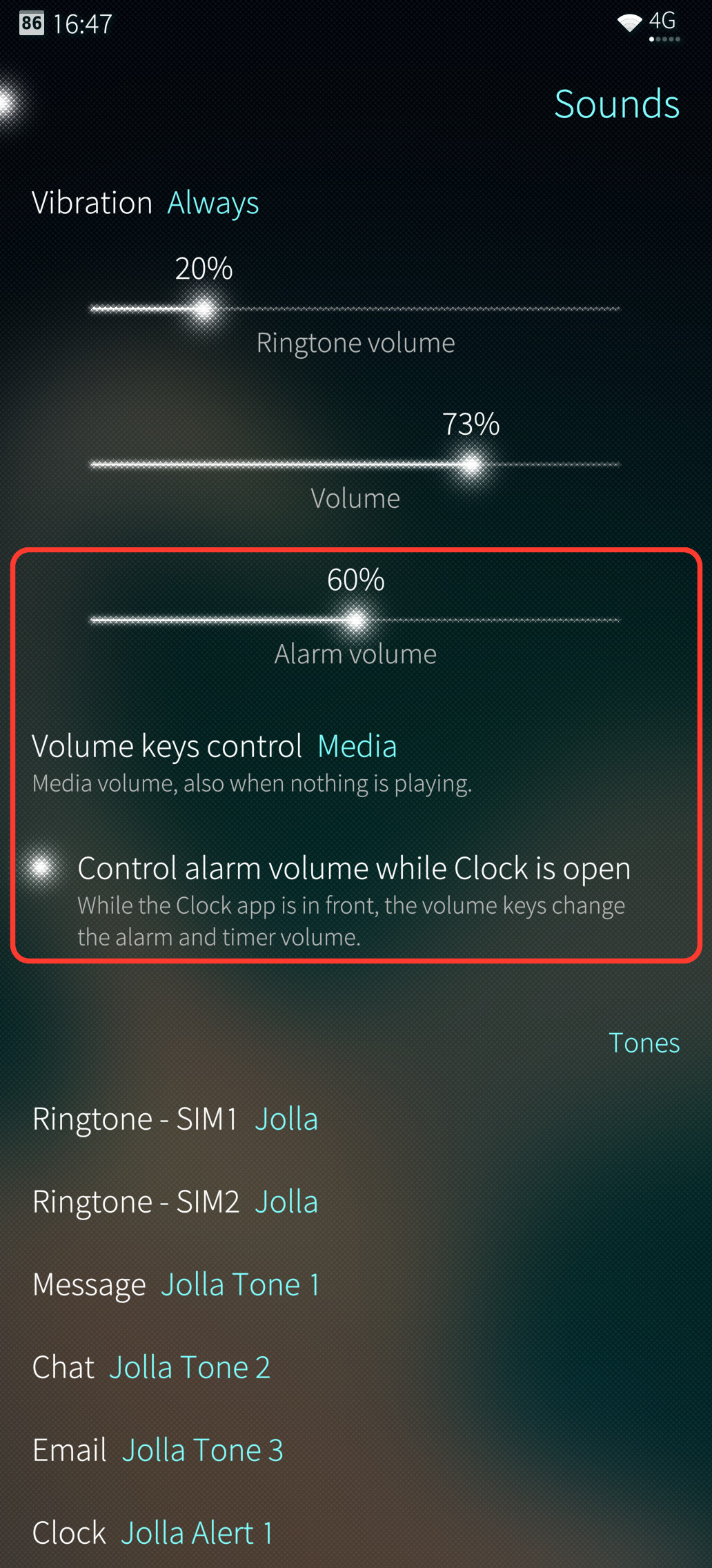
Everything is in Settings → Sounds and feedback, below the ringtone and media volume sliders (marked red in the screenshots):

  • Alarm volume: a slider for wake-up alarms and timers. It can’t go below 20 %, so an alarm is never silent.
  • Volume keys control: Media (default), Alarm or Ringtone.
  • Control alarm volume while Clock is open (on by default): while the Clock app is in front, the volume keys change the alarm volume.

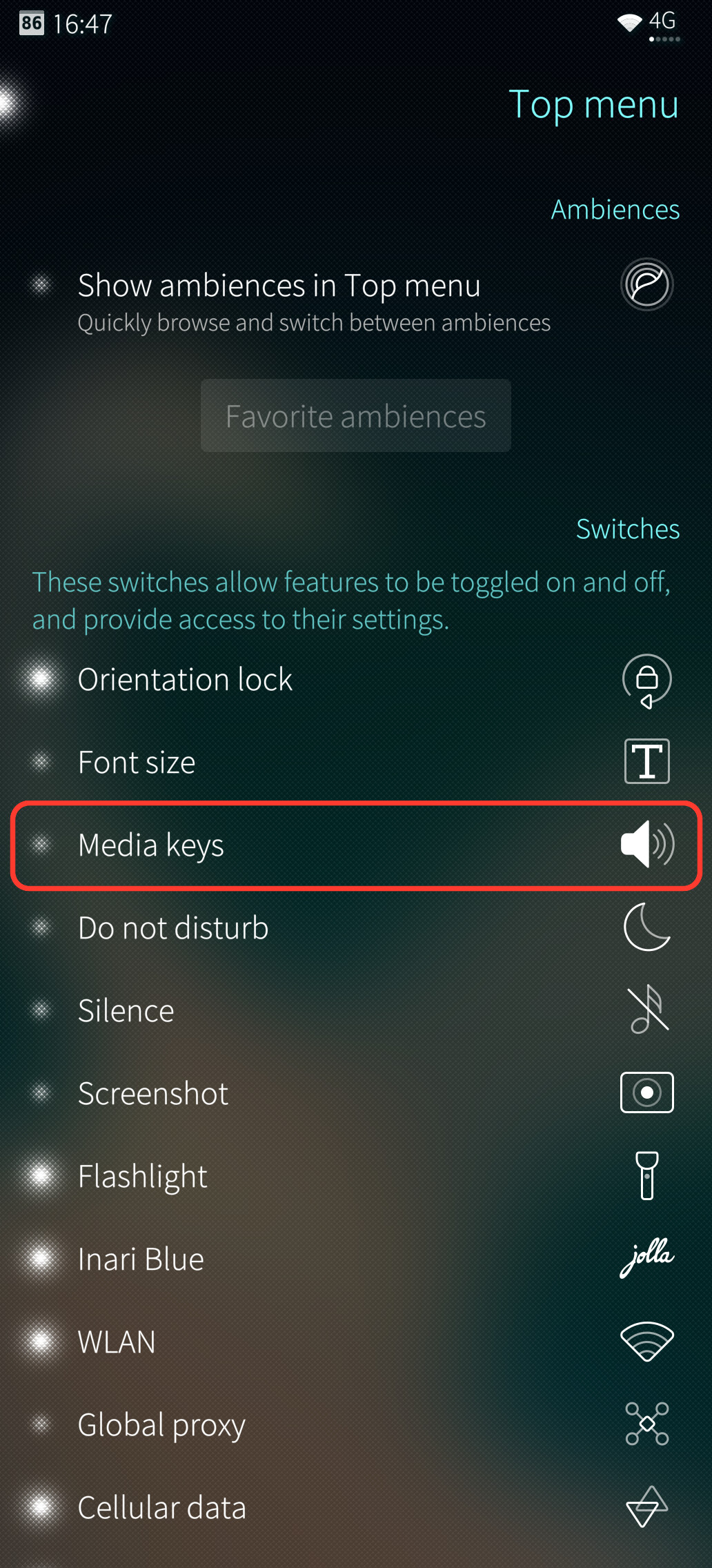
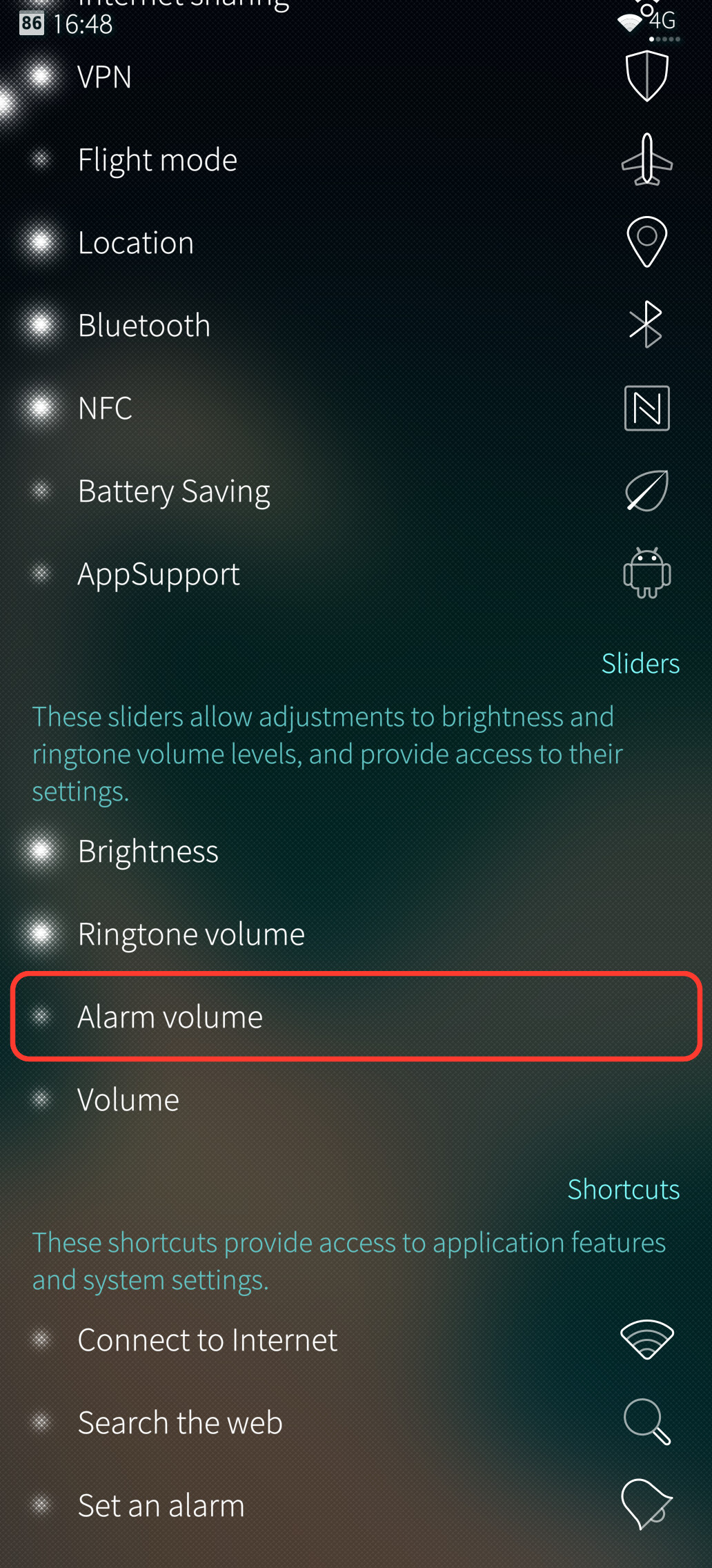
For the Top menu (Settings → Top menu) there’s an Alarm volume slider and a Media keys toggle (on = Media, off = Ringtone).

During calls the keys still change the call volume, and while something plays they change the media volume.

Install

Patchmanager 3 must be installed. Install it either from the web catalog or as the RPM, not both:

Then:

  1. Settings → Patchmanager: activate the patch, then pull down → Restart preloaded services (this restarts the homescreen and closes open apps). If the volume keys still behave like stock afterwards, reboot once.
  2. Close Settings completely and reopen it, then go to Sounds and feedback.
Updating from version 1.x

Version 1 was a small package with a switch in its own Settings page. Thanks to your feedback, version 2 is a Patchmanager patch, also controls the alarm volume, and lives in Settings → Sounds and feedback.

  • With the RPM: just install the new RPM, it replaces 1.x. Then activate the patch (step 1). I haven’t tested this update myself yet, but it should work.
  • From the web catalog: remove 1.x first (Settings → Volume keys → Uninstall), otherwise the patch can’t be activated.
  • If you had the Media keys toggle in the Top menu, add it again in Settings → Top menu.

Uninstall

Settings → Patchmanager: long-press the patch → Deactivate, then long-press → Remove. The volume keys and Sounds and feedback are stock again after Restart preloaded services or a reboot. The alarm volume stays at the level you set.

More

Without the patch (media only)

In the Terminal app, as the normal user (no root):

dconf write /jolla/sound/force_mediavolume true

Undo:

dconf reset /jolla/sound/force_mediavolume

Tested on my Jolla Phone (2026), SFOS 5.2.0.22 - use at your own risk.

Source & Download

Patchmanager web catalog: Project: sailfish-media-volume-keys

Made with the help of Claude. MIT license.

Works. The default behaviour mildly annoyed me for 12 years, so thanks for this. :smiley:

Can you set this way also the volumelevel of ALARMS like Timers, Stopwatch, Wake up etc?

@Ada is your patch available in the match manager already?

Thanks for the idea!

Version 2 now does this: in Settings → Sounds and feedback there’s a new Alarm volume slider for wake-up alarms and timers (they use the same volume). It can’t go below 20 %, so an alarm is never silent.

You can also set the volume keys to Alarm, and while the Clock app is open they change the alarm volume by default.

It’s a Patchmanager patch now. To switch: uninstall the old version (Settings → Volume keys → Uninstall), then install Volume Keys control Media, Alarms or Ringtone from the Patchmanager web catalog and activate it. Details are in the edited original post. Let me know if it works for you!

Yes, it’s in the Patchmanager web catalog now.

To switch: uninstall the old version (Settings → Volume keys → Uninstall), then install Volume Keys control Media, Alarms or Ringtone from there and activate it. Details are in the edited original post. Let me know if it works for you!

Version 2.0 is out, thanks to your feedback! It’s now a Patchmanager patch, and everything lives in Settings → Sounds and feedback:

  • Alarm volume: a new slider for wake-up alarms and timers. It can’t go below 20 %, so an alarm is never silent.

  • Volume keys control: choose Media (now the default), Alarm or Ringtone.

  • Control alarm volume while Clock is open (on by default).

  • Top menu: a new Alarm volume slider next to the Media keys toggle.

Updating from 1.x: uninstall the old version (Settings → Volume keys → Uninstall), then install Volume Keys control Media, Alarms or Ringtone from the Patchmanager web catalog (Settings → Patchmanager → pull down → Web Catalog) and activate it. If you had the Media keys toggle in the Top menu, add it again.

Hello Ada, I have not installed a Patchmanager before, should I install it from Storeman and if yes then which one, there are several :thinking:

Very smart solution. This is the kind of thing I hope Jolla takes note of and make available.

I am so sorry this really is awful ux on jolla, you need like five different stores and each only has a subset of apps. it is really annoying. if i remember correctly patchmanager is part of Chum and you can get it like this:

  1. Settings → System → Untrusted software → turn on Allow untrusted software
  2. Open this link in the phone’s browser to download the Chum installer:
    https://openrepos.net/sites/default/files/packages/5928/sailfishos-chum-gui-installer-0.6.9-1.noarch.rpm
  3. Tap the “File downloaded” notification (or find the file in File Manager) → Install
  4. Wait until the Chum app shows up in the app grid
  5. Open Chum → search Patchmanager → Install
  6. Reboot. Patchmanager is then in Settings → Patchmanager
  7. Patches: Settings → Patchmanager → pull down → Web Catalog

There you can look for Volume Keys control Media, Alarms or Ringtone to find the patches you need.

Sorry again. To this day i think the store-ecosystem of sailfish is an absolute ux nightmare…

Thanks, i really appreciate the positive feedback as it gives me motivation to do more :slight_smile:

@Ada with the new version from patch manager i had some issues with other patches (fine volume control) - volume control didnt worked anymore, so i switched back to your previous version, that works perfectly great: )

Thx Ada, this is exactly what I meant to control volume settings, works fine.

Does not work in JP2026 5.2.0.22 at all.
In X10II works.

Yeah that makes sense since both control the same part of the system, sorry for the trouble.

What i could offer you is to implement finer steps for volume into my patch if thats what the colliding patch does? I haven’t checked yet what it does tho.

lmk if i read that correctly or how/if you would like this fixed.

Thanks for the input got any more info other than “doesnt work”?

Any errors? Maybe patch incompatibility like “fine volume control”? Do the volume keys not change media? Does the system setting not show what you need?

i have no clue what your issue is if you don’t tell me.

I do not see any settings in Settings. Patch is applyed with Success status.

Quick update: i tested compatibility with fine volume control and sadly could not reproduce the issue.

i tested different patch load orders and settings and both always worked at the same time for me even tho pathmanager warned me of possible incompatibility.

The one limitaion i found is that only the ringtone volume gets the finer steps (i had to hold up / down for a second because it was so slow), media and alarm can not have finer steps with the current sailfish afaik.

If you want feel free to describe the issue and the setup that caused you trouble. As soon as i can reproduce the problem on my end i can fix it :+1:

Thanks!

  1. Did you restart the services by pulling down in patchmanager an selecting “restart preloaded services” followed by pressing “restart” at the top right? If you confirm that the screen should go black for a second and it should be in.

  2. I moved the settings from version 1 to version 2. They now live in the native “Sounds and feedback” section (see screenshots in op). Just to rule out looking in the old spot.

  3. If all of these dont fix it, please DM me the patch log from patchmanager > volume control > long press “patch log”

thanks again for testing :+1:

Is there also a possibillity to set different sounds at Alarms etc.? At this moment there is only one choice in my JP2 for all Alarms together.