Yep!
Just needed to dig more into the settings, sorry for the haste this got me excited
Voice typing is great and I just had to enable it, same for the emojis I only needed to change their set in the settings
Can honestly say best keyboard ever, I already reduced the keys height and size and added the number row, predictions and voice typing already getting better.
I’ll experiment for some more time with language ranking, might disable it to get more precise suggestions in the future.
I can honestly say I didn’t find a single bug while testing it out now
New update is fantastic! I’ve not yet worked out how to paste something as the usual clipboard button from the stock keyboard is missing, so far the only way I’ve found is going through a handful of menus to find ctrl, and then using ctrl+v to paste.
But I do have the quick settings now and can therefore select my preferred colemak keyboard layout! So I think this may well be my new keyboard of choice! Thankyou and well done
Added an optional “Show keyboard” action to the Sailfish OS Top Menu, allowing the keyboard to be opened in Android apps that normally do not show a keyboard.
Fixes
Holding the language/layout button in Quick Settings now switches to another enabled Sailfish OS keyboard.
Secondary characters no longer appear when briefly holding over a letter during swipe typing.
What a pleasant surprise! I would have been happy just getting swipe, but this is the exact keyboard I use on Android. I don’t use the voice input feature over there, but transcribing my voice so fluidly is a cinch, I could almost see myself using it regularly on Sailfish. Swipe is a bit clunky, it reminds me of how Nuance’s swype used to work, but that’s a similar complaint for the Android version.
I have noticed a bug where suggestions bounce back to the front, making the extra suggestions from some words inaccessible (try the word Quick on a clean dictionary and get past QuickTime). Xperia 10iii with 5.1.
Time will tell if I can prevent keyboard misinputs, but having key borders, vibrate and height control is doing wonders already. I also can’t believe the included password manager. I won’t be importing my Keepass bank, but I love that it’s an option. Keep up the good work.
I have noticed a strange issue with the FUTO keyboard when used with the xmatic matrix client.
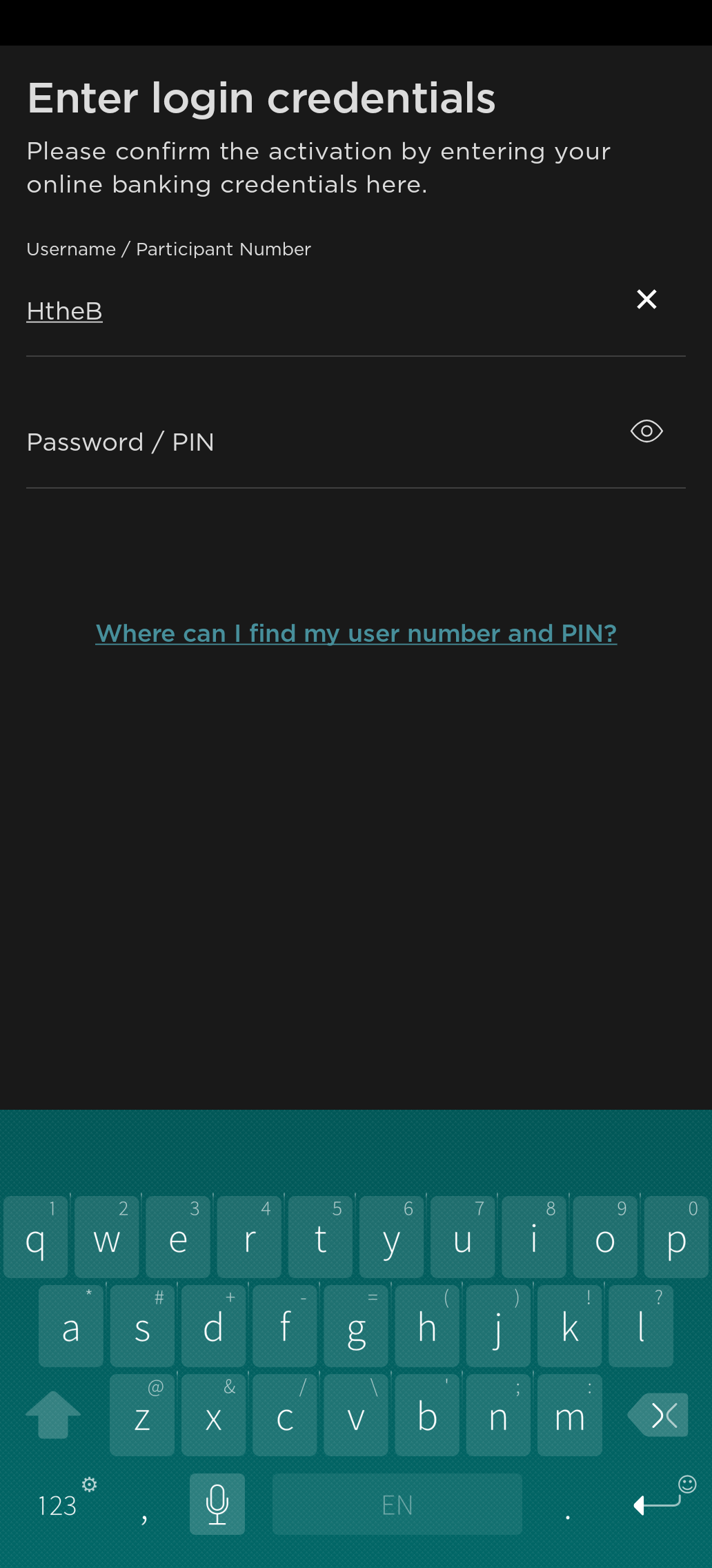
See how FUTO underlines each word as you type it? Xmatic doesn’t seem to “know” there is a word in the compose field until after that underline goes away. This means I can’t send one-word replies (the ‘send’ button doesn’t show up until after it recognises a word has been typed) and the last word of each message I type is cut off when I hit ‘send’.
I don’t know what this underline is doing. Is it part of autocorrect? I do not wish to use autocorrect, maybe there is a way to turn it off so I can negate these issues.
Great stuff, a very solid implementation for being so new. Thanks for the effort!
One thing: I am using three languages at the moment.
If I disable “Detect and rank active languages automatically” in Prediction Languages, how do I manually select my language? In the top row I see the button for the “layout”, which combines languages by layout (IT+EN_GB or FI/SE for me) and “layouts”, but no manual “languages” button to pick the one I want. Space is used for cursor-dragging at the moment.
This seems to affect logins too. You have to click the password field once to remove the underline or it won’t be accepted. Almost reset foilauth because of this, lol.
Was a bit baffled at first too that even after downloading an emoji pack, the keyboard layout was all boxes. After I changed the type of emoji, the emoji keyboard was populated with the correct icons.
So for anyone needing this:
FUTO → Settings → Downloadable content → Emojis
Select the emoji style of your choosing
FUTO → Settings → Emoji → Emoji stye
Set the same style as the downloaded version
Ta-Da! Emoji keyboard active and smiling!
PS. This is probably the most times I’ve ever used the word emoji on a post.
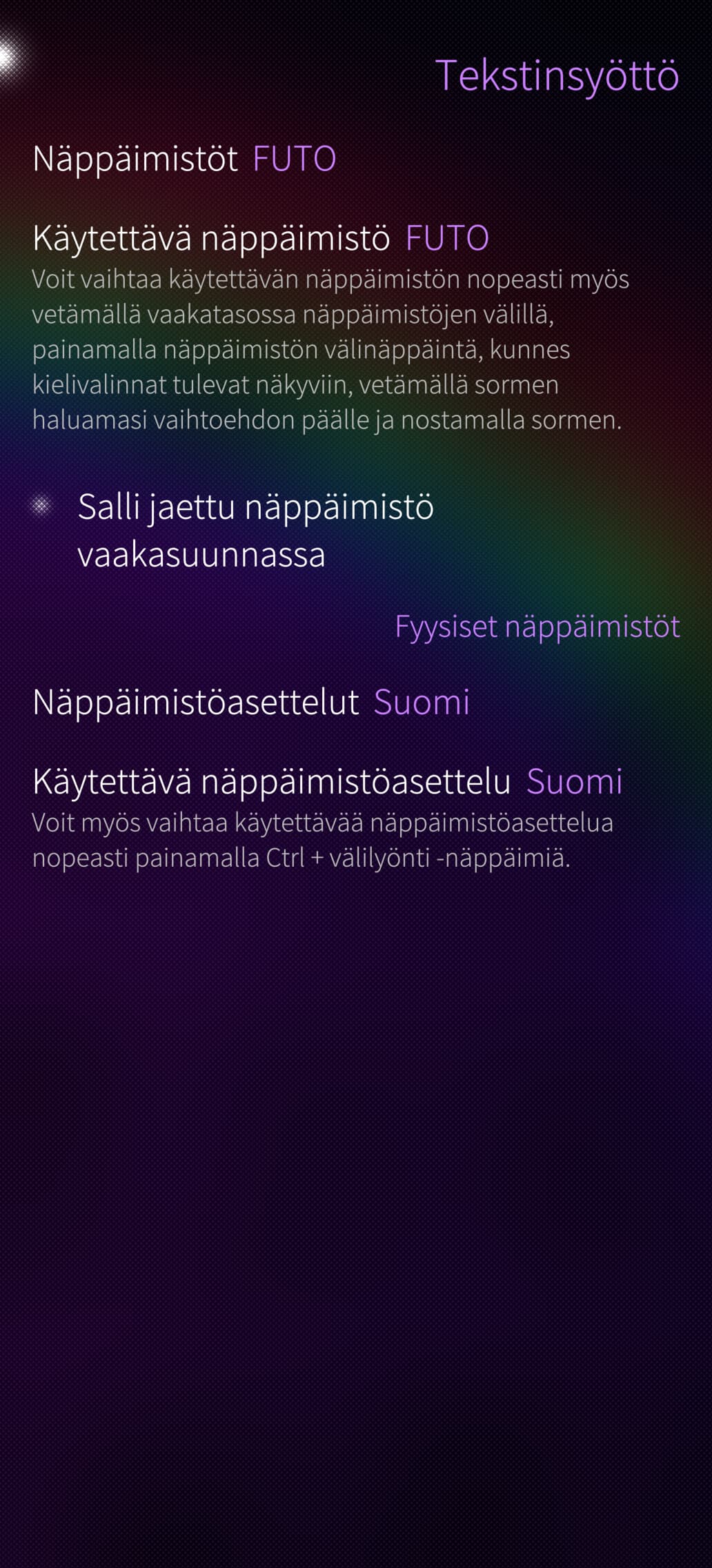
Open Settings → Text input → FUTO Keyboard settings to choose your languages and customize the keyboard.
There’s no FUTO settings in Text input. So you have to activate the keyboard on an app before you can access the settings. Not sure if it’s even possible to get the settings there, but another idea would be to have it in the Apps section of the Settings app. Of if this is supposed to be there, then it’s a bug.






 (Holding down the “123” button and then tap Settings)