After many hours trying, I’ve read many other threads and tutorials, but now I am a bit out of hope.
I’m trying to get a Sony Xperia 10 iii into fastboot mode (usually signalled by the blue light). The phone has no Simlock: OEM-Unlocking and USB-debugging are enabled. The Android version is 13 (I know that it is not officially supported, but it was reported as no problem).
when I try to get from the completely switched off device into fastboot mode via the device buttons (Volume up + plugging the cable), I always end up with green light and charging mode. I tried three different data usb-cables and different moments to plug the cable in.
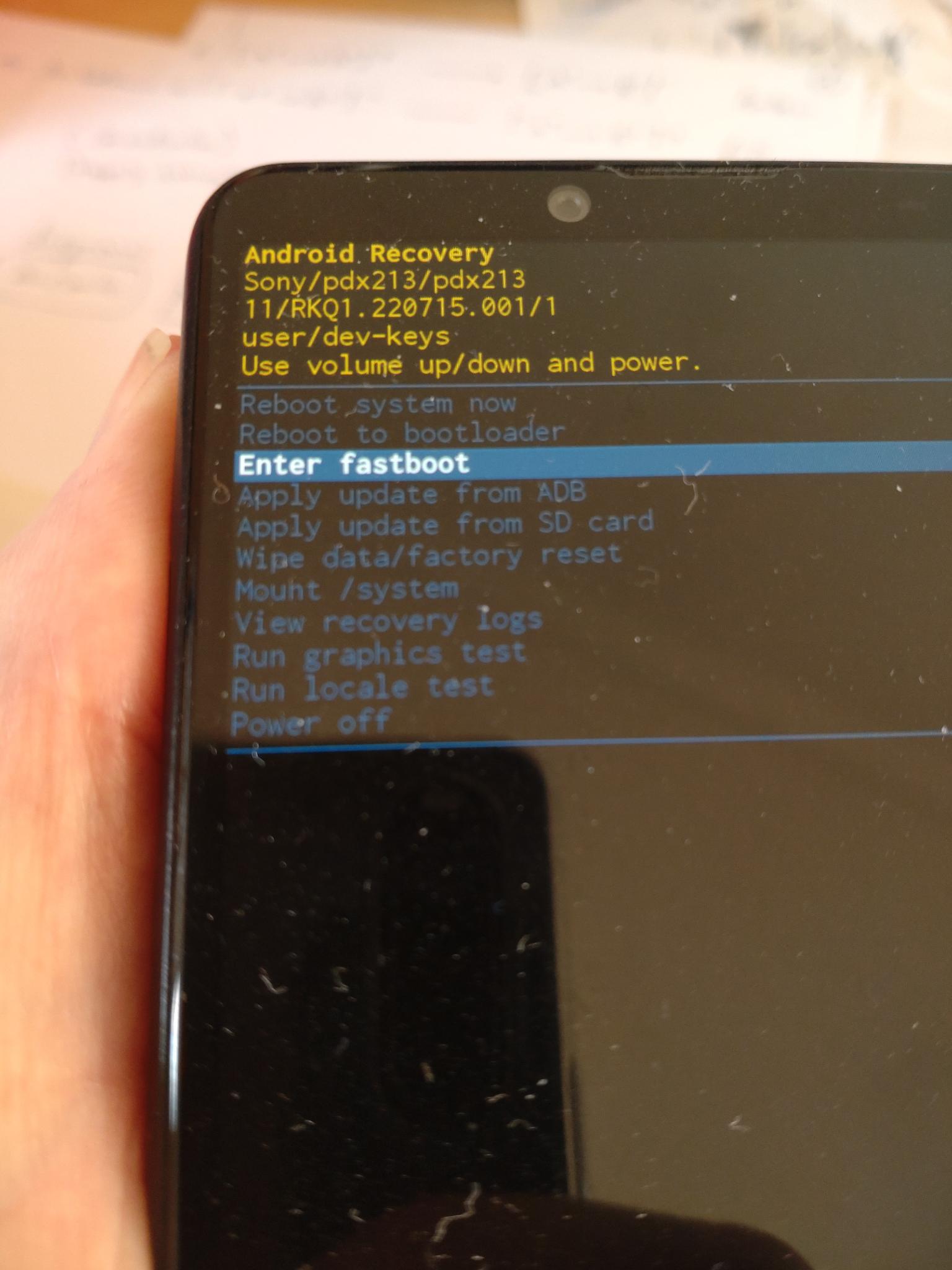
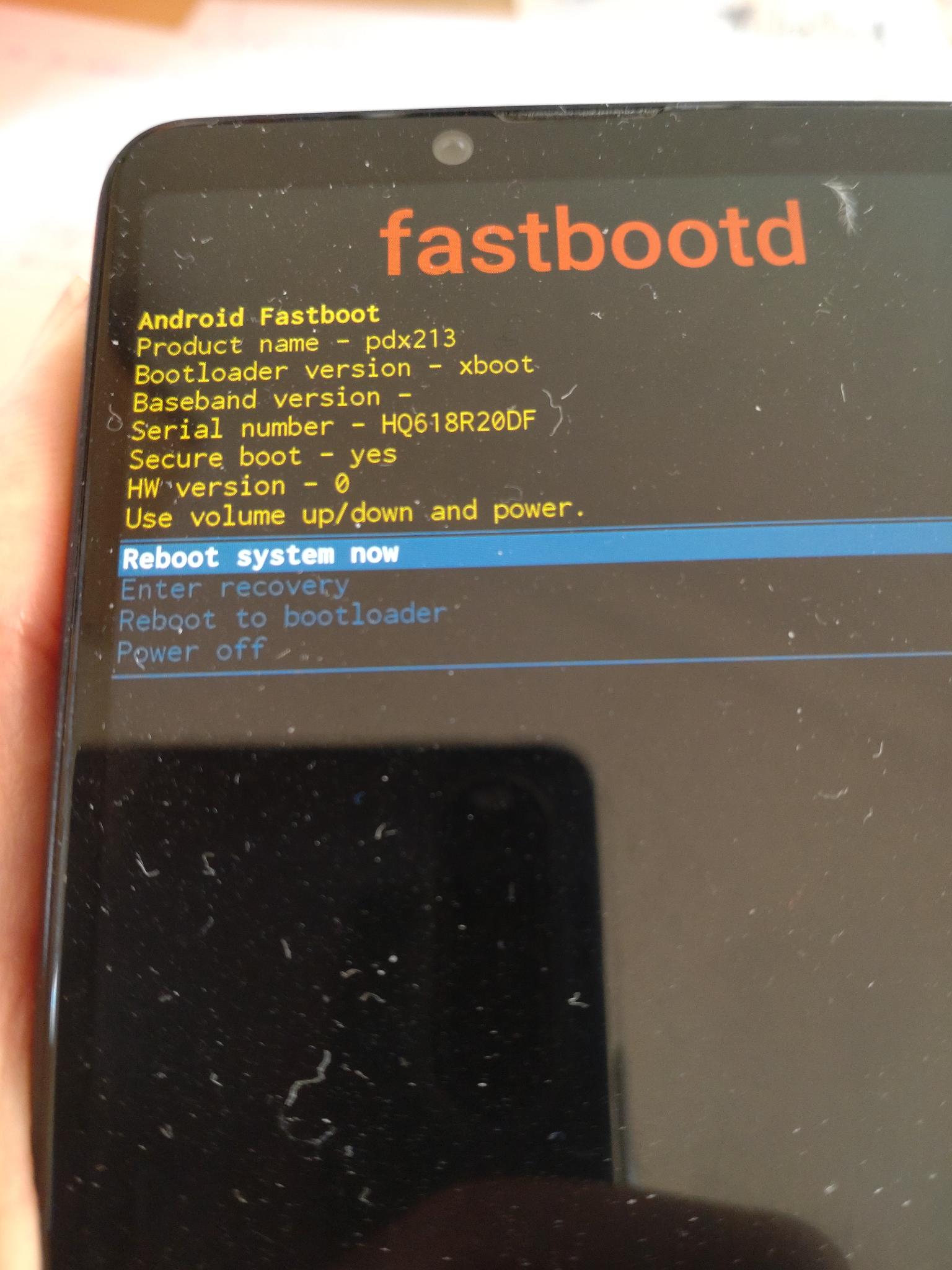
when I use Volume down + power, I get into first recovery and then, keeping the power button pressed and navigating down, to the “fastbootd”-mode (screenshots below).
In this fastbootd mode I can call from Terminal (bash on macos): fastboot devices and see two devices: HQ618R20DF fastboot.
There is still no blue light. But I can try sudo fastboot oem unlock UNLOCK_CODE . As a reply I get: FAILED (remote: ‘Command not supported in default implementation’) fastboot: error: Command failed. I have read somewhere that the fastboot mode is a userland fastboot (fastbootd) and may not be the correct fastboot? But I have no idea how I could get there.
Sanity checks:
To make sure, I can check fastboot --version, fastboot version 36.0.2-14143358.It is not in the purchased sailfish folder (there is only a fastboot.exe there. I remember that I got it from https://developer.android.com/tools/releases/platform-tools).
I can reboot the phone from the command line, e.g. with fastboot reboot fastboot. But this just brings me back to the fastbootd interface.
yes, sorry, I’ve tried so many combinations that my description is wrong. I’ve corrected it, I do it with just volume up + plug cable, but no blue light.
I think you can boot into the (old) fastboot mode with fastboot reboot bootloader or else with adb -d reboot bootloader which should have the same effect as holding down Volume Up and get you to the blue light mode and not in the FastbootD mode.
This only works if you did all the prerequisites as describes such as enabling Developer mode and USB-debugging and checking if OEM-Unlocking is available.
You run fastboot reboot bootloader instead of the fastboot reboot fastboot command like you described. Alternatively, you can try and run adb -d reboot bootloader when the phone is booted in the OEM stock installed Android 13 with USB-debugging enabled. Don’t forget to “accept” when you plug in the USB cable. The -d is for “Use USB device and not network or something else” and is not strictly necessary, but helps sometimes. Adb is part of the same platform tools that the fastboot command is part of.
After running one of these commands the phone should reboot into the blue-light mode.I’m not sure if this will work, but it’s worth a try. If this does work, your Volume Up button might be broken .
Thank you for the detailed instructions! Here are my results:
double checked in Android that OEM-unlocking and USB-debugging are toggled on in the developer settings. To make sure, I went again to “Settings>About Phone” and tapped on build number: message: you are already developer. Btw. Volume keys work under Android.
booted into fastboot first by Volume-down+power and USB-cable plugged in, checked in terminal with fastboot devices that device is reachable.
run fastboot reboot bootloader – phone restarts, but ends up starting the system fully, no blue light.
reboot the system once more, making sure USB-debugging dialog pops up when starting. Then running adb -d reboot bootloader – restarts the phone, but again, starting the system fully, no blue light.
Do you have an idea what could be done? My only next idea was to make a full factory reset and start over again: I’ve just completed this, but nothing changed.
The only idea I have found is that it could be a USB issue with macOS Sequoia. So I’ll try more cables. Thing is that I can connect to the device through fastboot devices, so this seems to contradict an usb problem.
It also always took me many time to get a blue light within this procedure, make sure you use pressed power up buttom, preverable the original cable and as far as i know usb2 ports work better than usb3 ports. (in fact i always had the best results with my oldest computer)
OK, I managed to get through this, and I can say that “I saw the blue light”. It was like sitting on a lake fishing. I took my older computer and tried many times (in the order of, say 30 times). I succeeded when connecting via a large USB-hub and first plugging in a hard drive and then immediately vol-up and the phone via a usb-2 to usb-3 converter cable. Still also this needed many tries.
Over the course of the install procedure, you need to do it twice. The second time was as difficult as the first one, but then I was more confident that I’ll catch it.
So indeed, it is the speed of the USB-handshake that needs to be slowed down by disturbing it. Bad adapters may help, too.
So indeed, it is the speed of the USB-handshake that needs to be slowed down by disturbing it. Bad adapters may help, too.
Woah, indeed.
I never have had any problems with the “blue-light mode”, it just worked™ on my Linux laptop with 6.12 kernel with USB 3.1 gen 1 ports. It’s an X270 Thinkpad with “Mil-spec” so was thinking it might be just a solid and rugged design, but
But I recently measured the Logitech cables I used with a CaberQU and it was a genuine High Quality USB 2.0 low-low-low throughput cable. It came with a mouse I bought a while a go. So using a solid crappy™ cable actually helps.
It is weird though that it needs so much VooDoo to get this working. It’s also an Android problem and not a Sailfish problem. But it feels there should be a logical explanation and an easy fix.
For me using USB 2.0 crappy cables worked.
Nice to hear that you managed to install Sailfish, @telephon !
 .
.