I’ve set a passphrase for my security code on the settings menu when my phone was unlocked. After rebooting, I want to type my passphrase (password) but I realize that there is no “%” symbol on the keyboard.
What should I do?
Currently, I am stuck at the Enter security code page after rebooting. In fact, when the phone was opened, I was able to set my passphrase with the “%” symbol.
Do you see the keyboard icon on your screen, perhaps somewhere in the upper lefthand corner? That should work for toggling between numeric and a more complete keyboard.
You can boot the phone in recovery mode, and change the passphrase there.
Reboot the device with power key, hold down volume-up button when the phone vibrates, and then confirm with volume-down key. Connect the phone with USB to computer, and telnet to the address shown on the phone screen.
In the telnet recovery menu select option 3 “Shell”, enter your current passphrase, and then on the commandline enter command
Did you test that when starting the phone at boot? For me it shows different keyboard than normally when the phone is on. I checked all the keaboards when the phone is on and all but Emojit keyboard seem to have %. Though I could not get % when starting the phone. My phone language is Finnish if that affects.
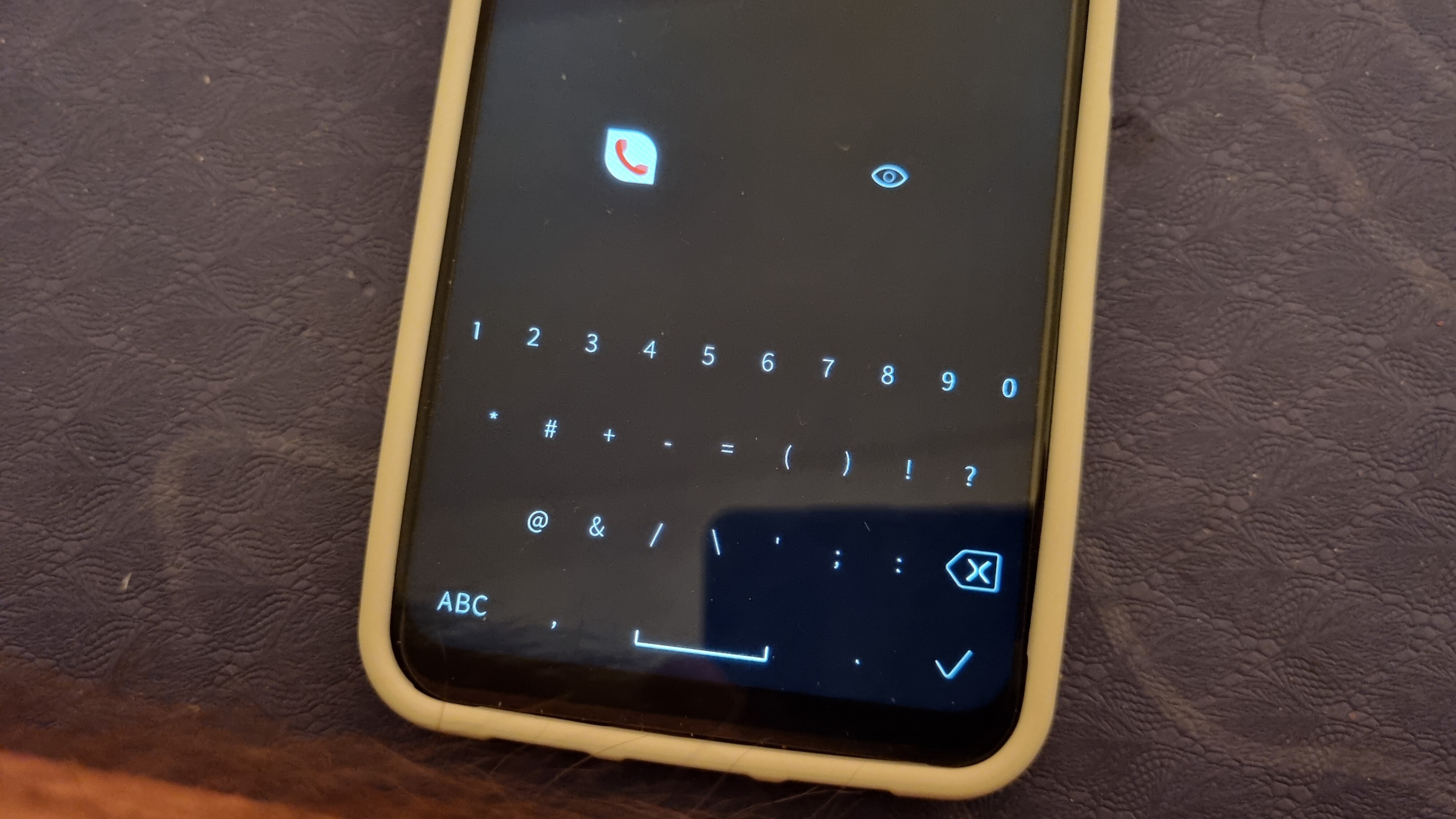
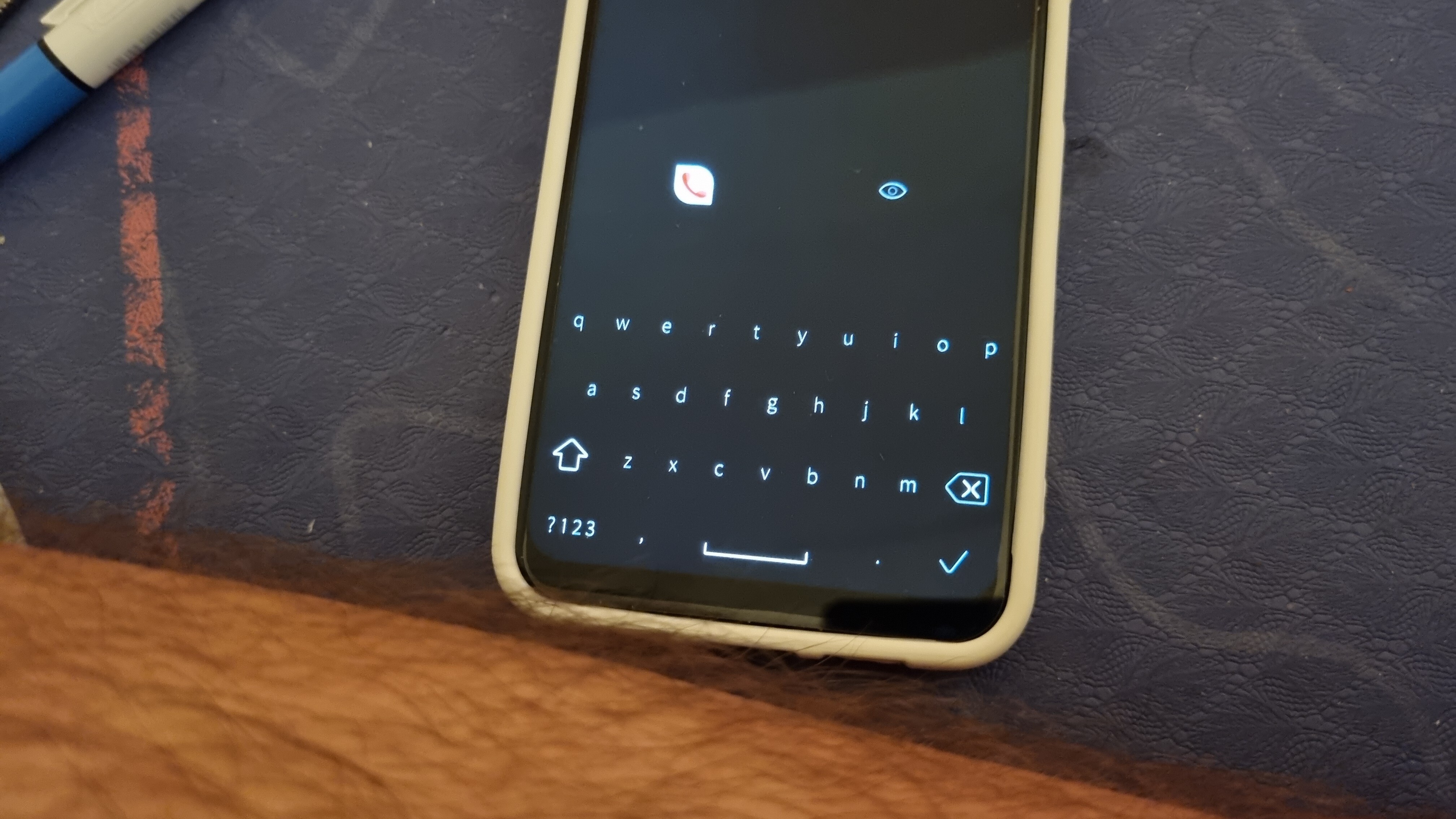
I will explain more clearly what happened. Basically, I set a passphrase with the character “%” in the settings app. When rebooting the phone, at the first page “Enter security code”, the symbol “%” wasn’t available on the keyboard. As @Keto said, it must have been a bug because I was able to set the password with this character but not able to use it after a reboot.
Here are some pictures of the keyboard, showing no “%” symbol:
Moreover, when I wanted to use recovery mode and connecting to my different distros on Linux, I always get ”Access refused” with the telnet command. However, using the latest Windows 11 and not installing the Putty app, I was able to connect to the phone. I had only to enable Telnet with the Control Panel. From there, everything was smooth and worked as intended.
Again, thank for your fast reply and I hope to help you find more bugs X)
It is therefore highly recommended to select passphrase characters only from 7-bit ASCII, as the encoding for 7-bit ASCII stays the same for all ASCII variants and UTF-8.
Within possibilities but would need a second page of special symbols. Maybe not highest on my todo list though as the current subset should already provide quite a variety of lock codes.