I wanted a minimal phone UI on my Jolla Phone, and a few things about the stock homescreen kept bugging me. So I rearranged it with a Patchmanager patch. I’m new to Sailfish and to how its homescreen works inside, so there are surely smarter ways to do some of this. If you see something I got wrong, or know a better approach, please tell me.
Why I built it
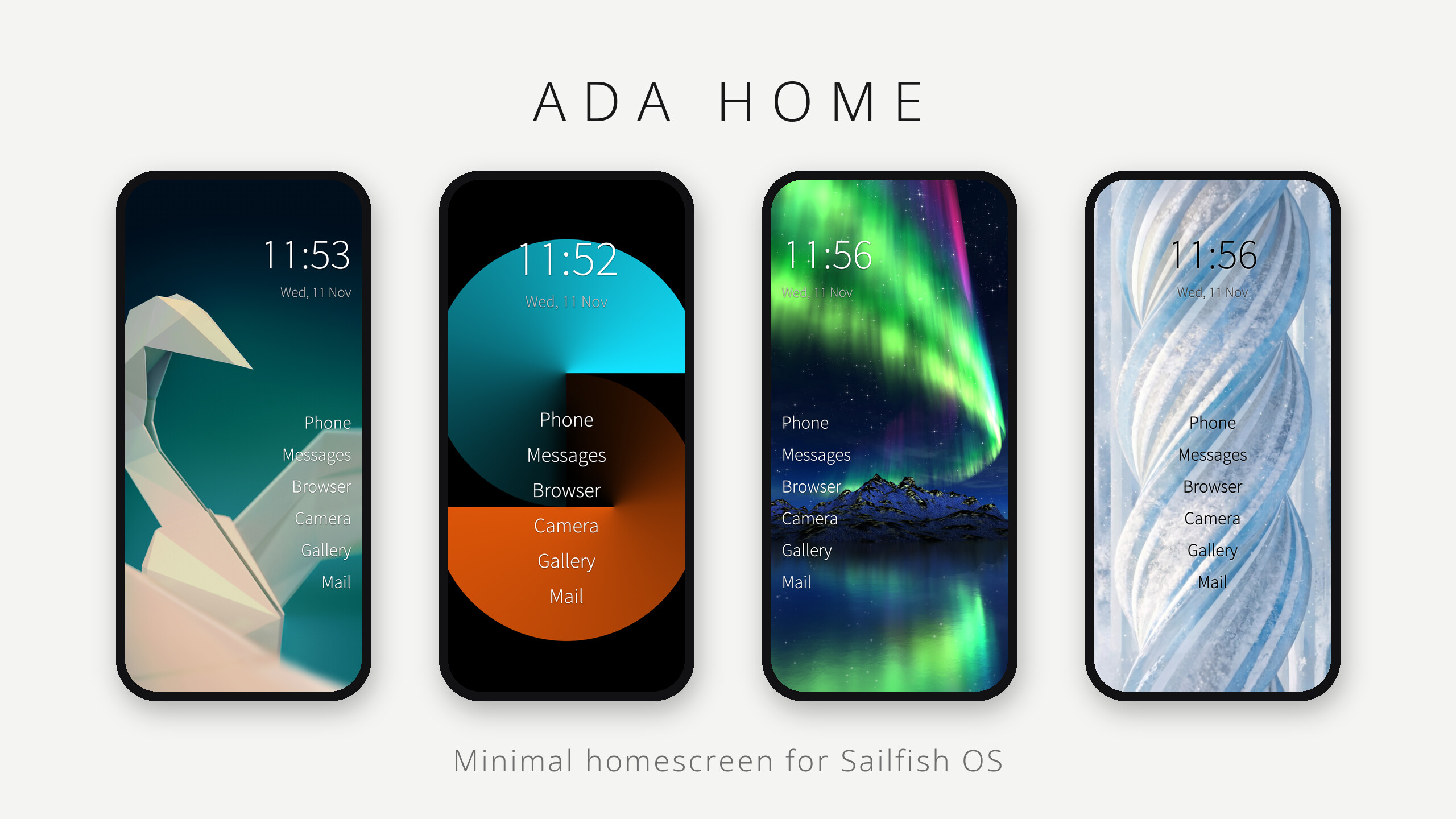
AdaHome moves things around in the stock homescreen rather than replacing it:
-
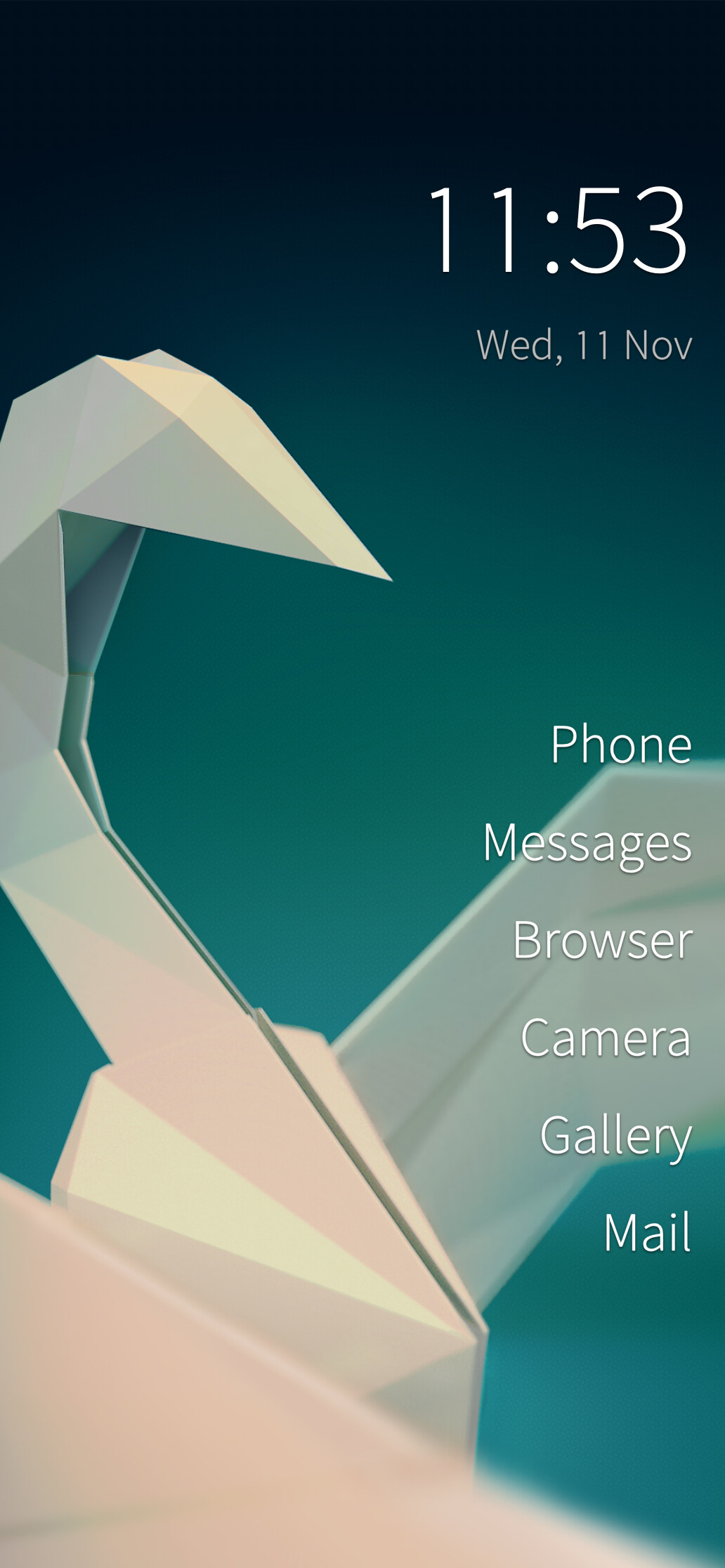
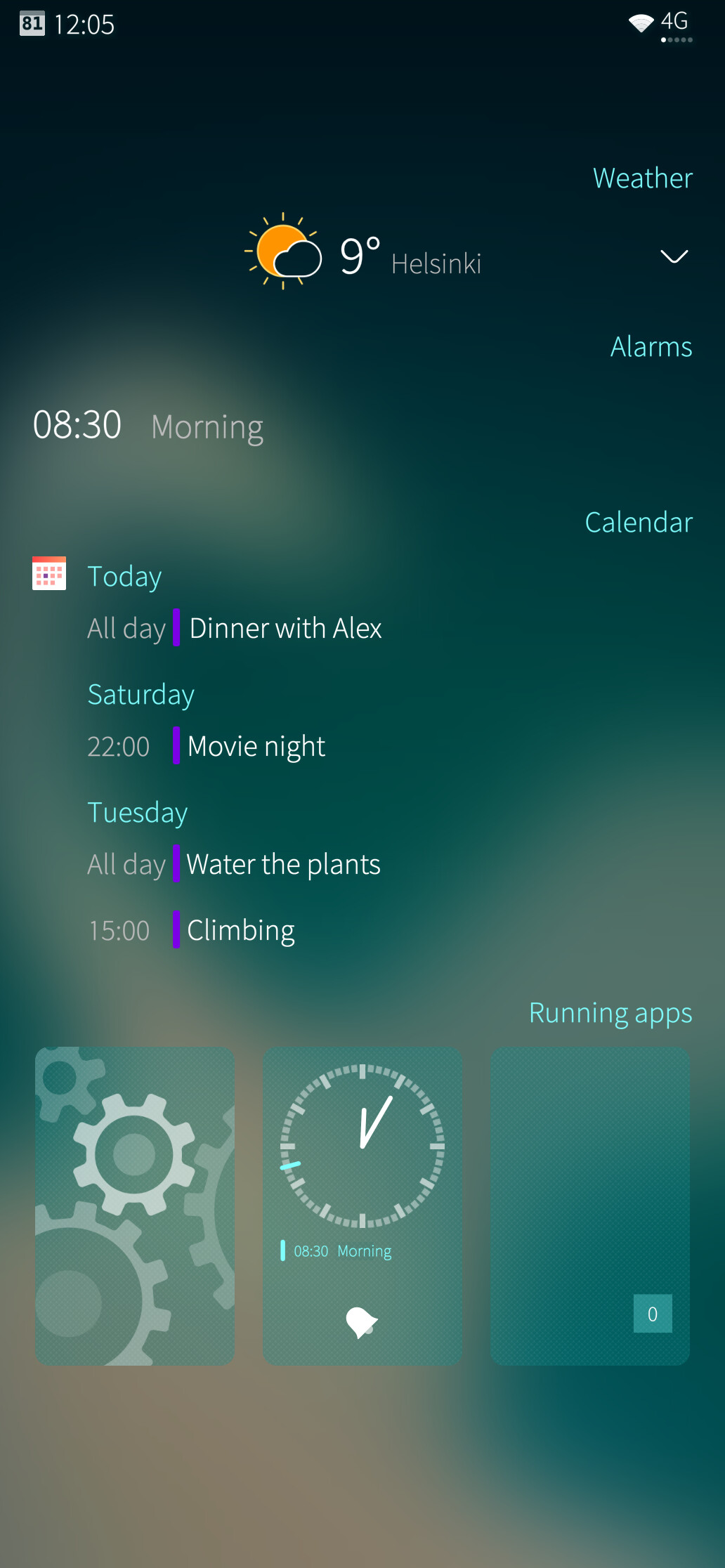
A calm Home. In the running apps grid, where an app sits depended on when and in what order you opened your apps, and it changed again whenever you closed one. Closing all apps to “clean up” just started the shuffle over. To me that felt messy. So Home is now a clock, the date and up to 8 apps as plain text. The running apps moved to the second page, where the notifications used to be.
-
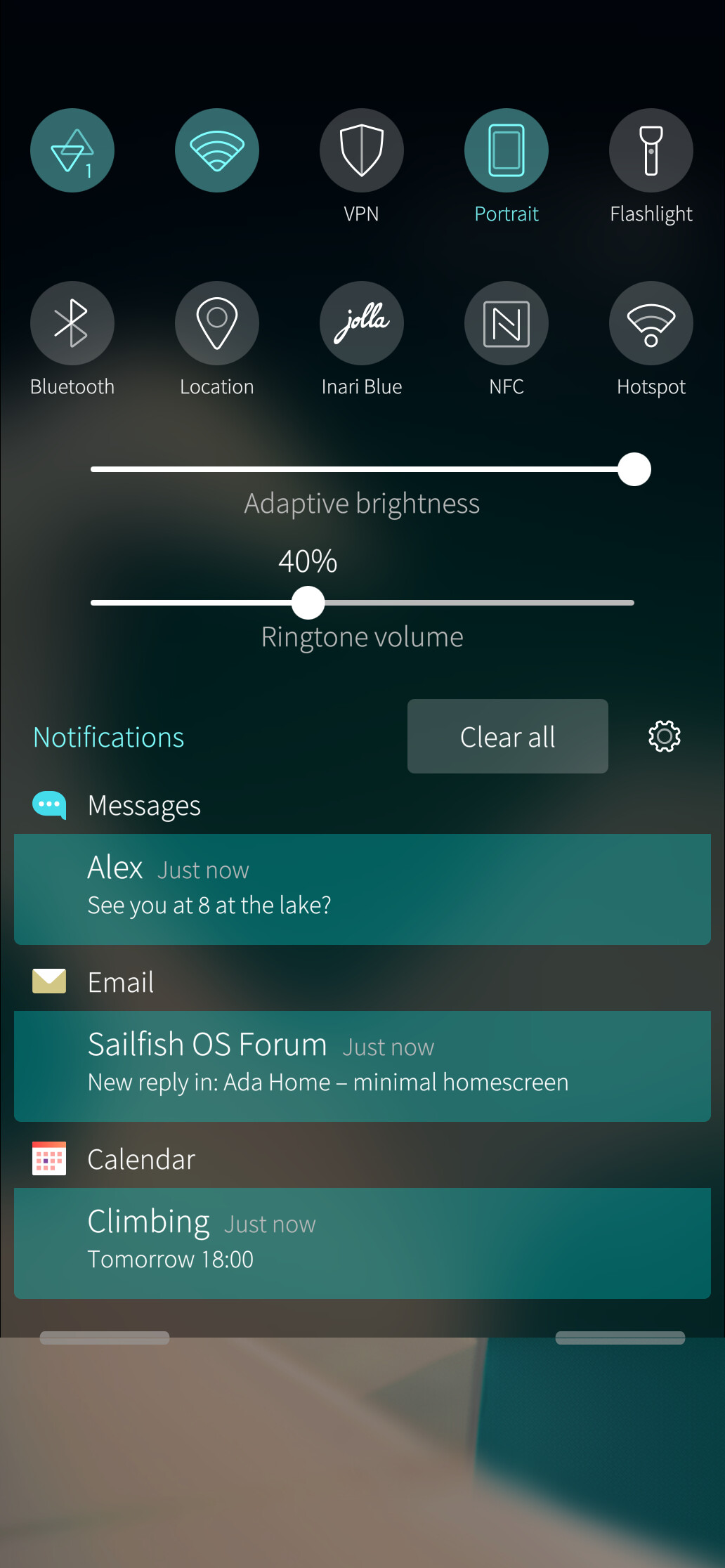
Notifications at the top. New notifications have always slid in from the top and hide back up there, so to me it only makes sense to find them there too. Most other systems do it that way, so it should also feel familiar to newcomers. They’re now in the Top menu, below the toggles, and you can swipe them away directly, without a long-press first.
-
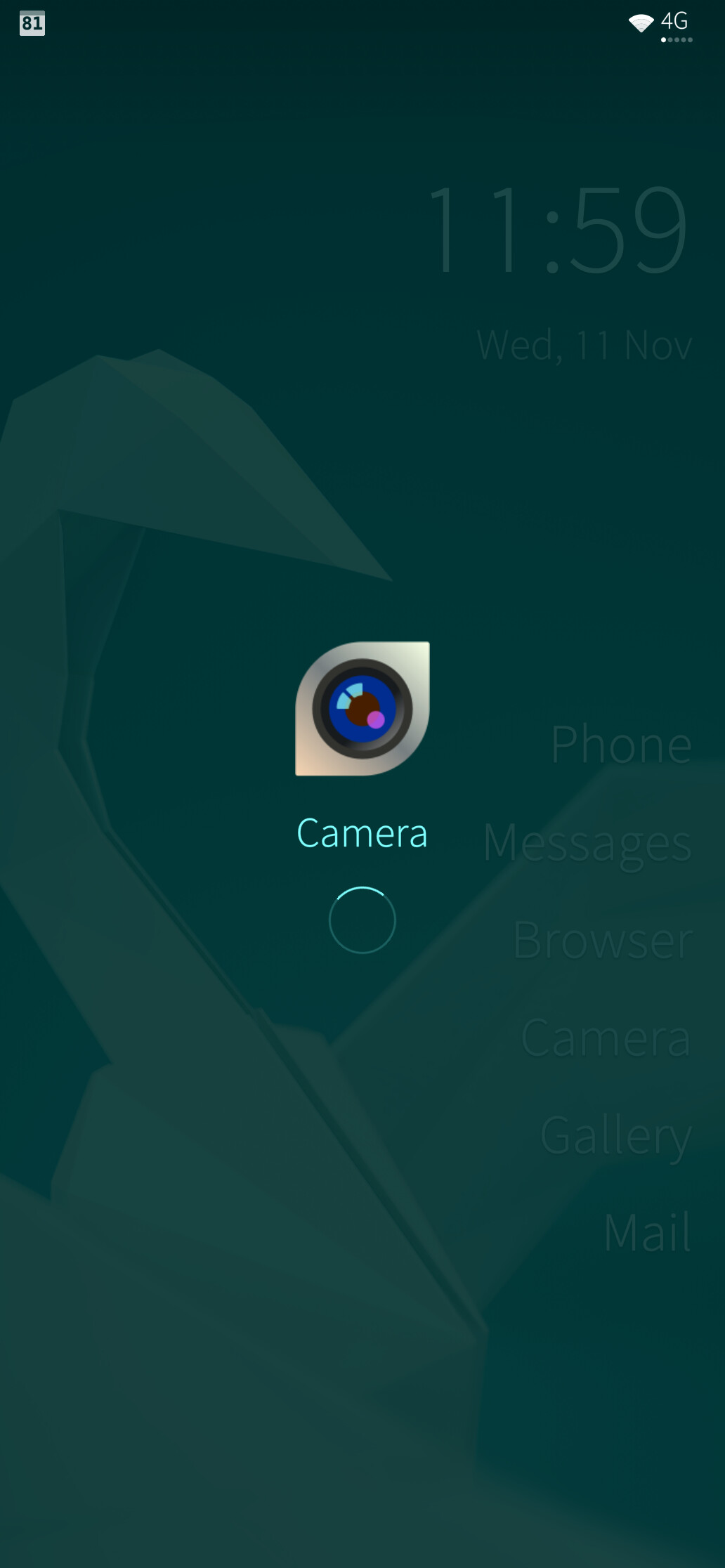
It feels snappier. Before when I opened an app, I didn’t see the app but the (messy) homescreen for a couple of seconds until it started. Now a loading screen with the app’s icon and name shows right away. Apps don’t start any faster of course, but it feels a lot faster.
-
Links land where they should. When I tapped a link in an Android app like WhatsApp or Signal, I sometimes ended up looking at the running apps and had to find and tap the browser myself. Now AdaHome handles links smoothly for you.
Quickstart guide
-
Tap the clock or the date to open your clock or calendar app. Long-press them to choose which app that is (any app, also Android ones).
-
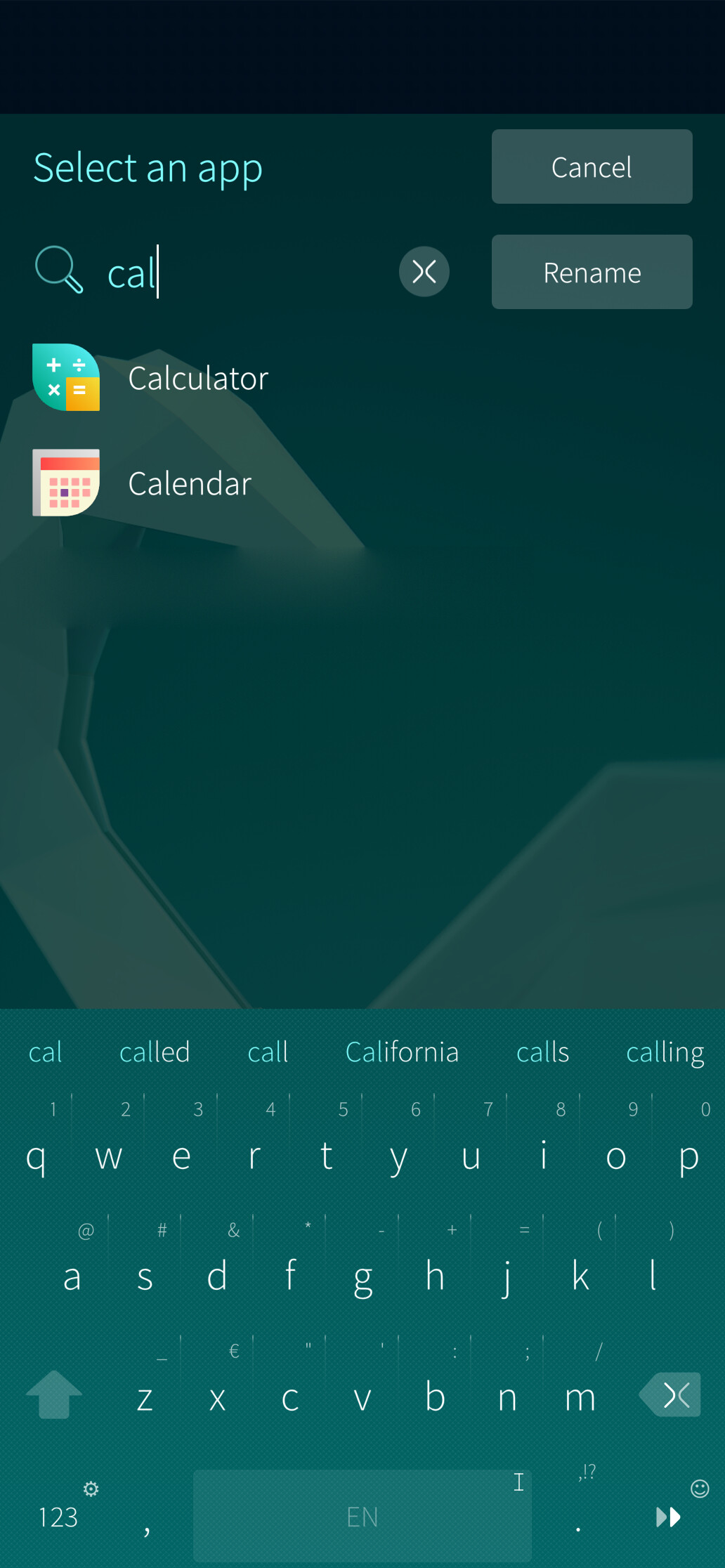
Long-press an app to choose another one from a searchable list. To rename it, type the new name and tap Rename.
-
Swipe left or right in the middle of the screen to open an app of your choice (by default Calculator and Contacts). Swipes from the screen edge still switch to the second page.
-
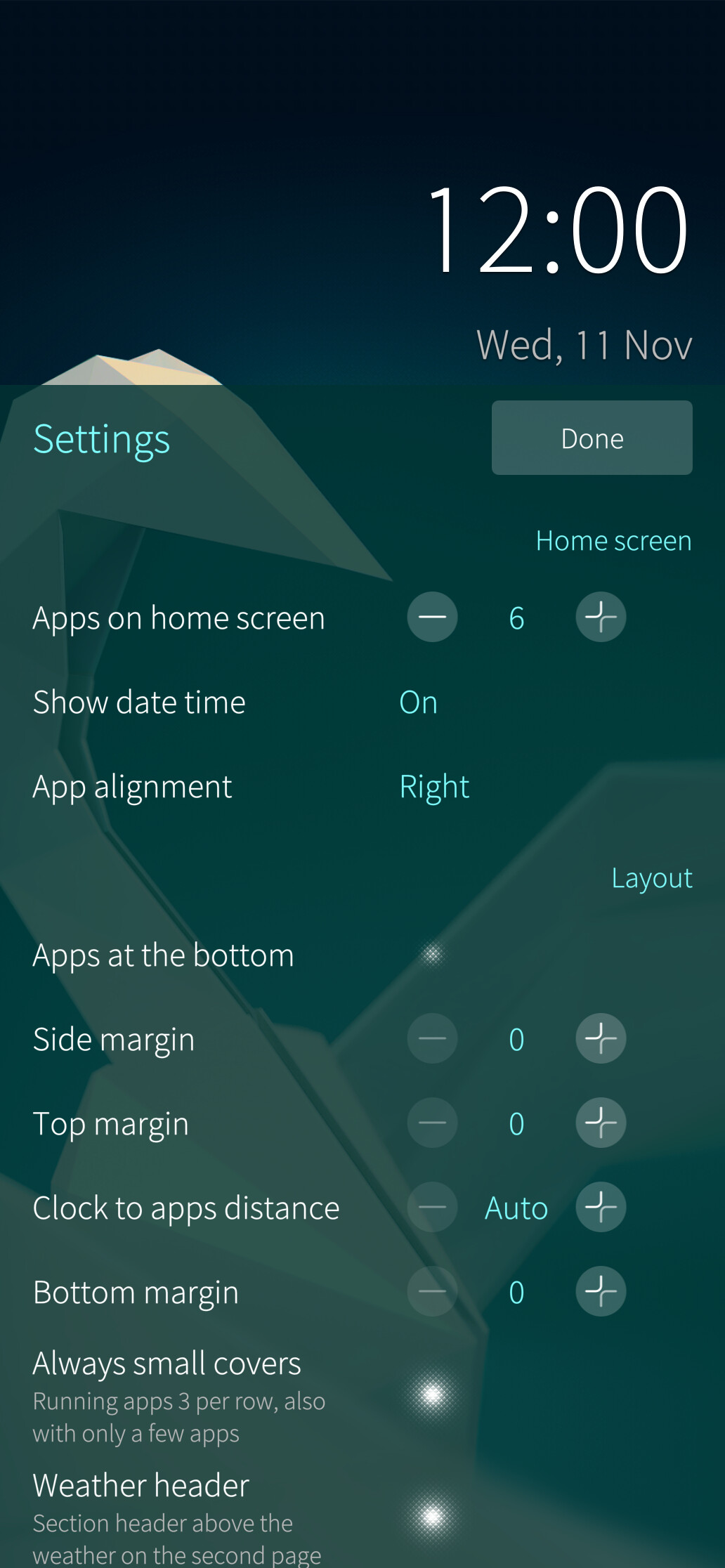
Long-press on empty space opens the settings, with the clock staying visible on top so you see changes right away.
-
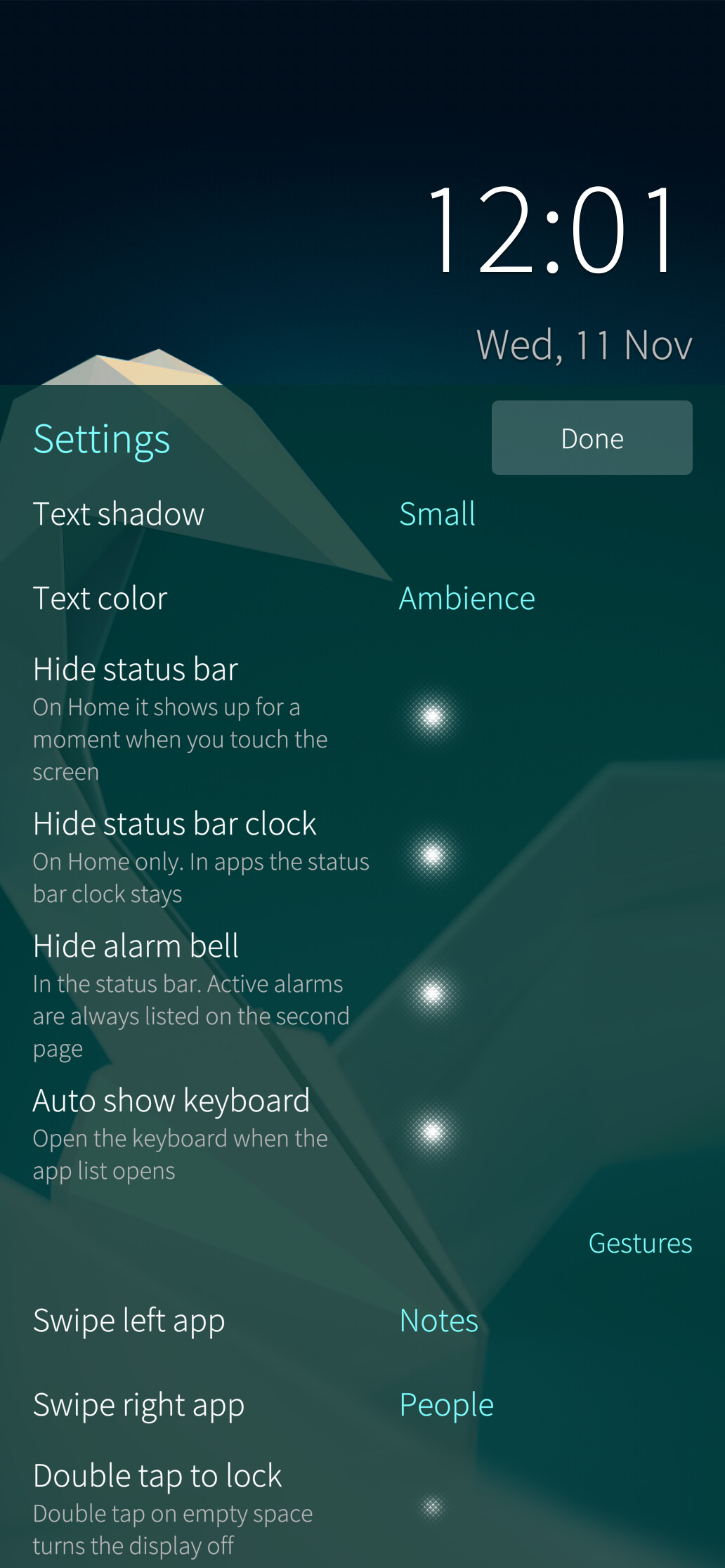
Optional: double tap to lock, a hidden status bar that shows up when you touch the screen, and hiding the alarm bell (your alarms are listed on the second page anyway).
All settings
All values are stored in dconf under /desktop/lipstick-jolla-home/ada_home/.
| Section | Setting | Default | Key |
|---|---|---|---|
| Home screen | Apps on home screen | 4 | slot_count |
| Show date time (Off / On / Date only) | On | date_time |
|
| App alignment (Left / Center / Right) | Left | alignment |
|
| Layout | Apps at the bottom | Off | bottom |
| Side margin, Top margin, Bottom margin (steps of one standard spacing) | 0 | margin_side, margin_top, margin_bottom |
|
| Clock to apps distance (Auto = centred) | Auto | apps_gap |
|
| Always small covers (running apps 3 per row) | On | small_covers |
|
| Weather header (on the second page) | On | weather_header |
|
| Appearance | Text size | 1.0 | text_scale |
| Bold font | Off | bold |
|
| Text shadow (Off / Small / Medium / Large) | Small | shadow_level |
|
| Text color (Ambience / Ambience highlight / White / Black) | Ambience | text_color |
|
| Hide status bar (on Home; touching Home shows it for a moment) | Off | hide_status_bar |
|
| Hide status bar clock (on Home only; in apps it stays) | On | hide_status_clock |
|
| Hide alarm bell (in the status bar; alarms stay listed on the second page) | Off | hide_alarm_bell |
|
| Auto show keyboard (in the app list) | On | auto_keyboard |
|
| Gestures | Swipe left app, Swipe right app | Calculator, Contacts | swipe_left_app, swipe_right_app |
| Double tap to lock | Off | double_tap_lock |
Patch compatibility
AdaHome doesn’t change any status bar file, so I expect status bar patches to work alongside it. These are active together with AdaHome on my phone right now:
-
Launcher Search List 0.2.6
-
Compact Battery 0.1.2
-
Compact Cellular Indicator
Patches that change the same lines of the homescreen as AdaHome can’t be active at the same time. I think that’s most likely for patches that change the notifications, the Top menu or the covers page. Anything a patch adds to the Events view won’t show.
Install
You need Patchmanager (3.x). AdaHome is in the Patchmanager web catalog:
- Settings → Patchmanager → pull down → Web Catalog, open AdaHome and tap the newest version under Files to install it.
- Back in Patchmanager: activate AdaHome, then pull down → Restart preloaded services. This restarts the homescreen and closes your open apps.
Install as an RPM instead
Use either the catalog or the RPM, not both: they install into the same folder.
- Download
ada-home-sailfish-<version>-<release>.noarch.rpmfrom the releases on the phone and tap it in the file manager to install it (with developer mode on). - Activate it as in step 2 above.
Updating: install the new RPM the same way. It deactivates AdaHome before replacing its files, so activate it again afterwards. Your settings stay. There’s no update notification for the RPM.
Uninstall
Settings → Patchmanager → long-press AdaHome → Deactivate, then long-press it again → Remove. The homescreen is stock again after Restart preloaded services or a reboot. Your AdaHome settings stay in dconf; dconf reset -f /desktop/lipstick-jolla-home/ada_home/ removes them.
Source & Download
Made with the help of Claude. Tested on my Jolla Phone (2026), SFOS 5.2.0.22 - use at your own risk.


